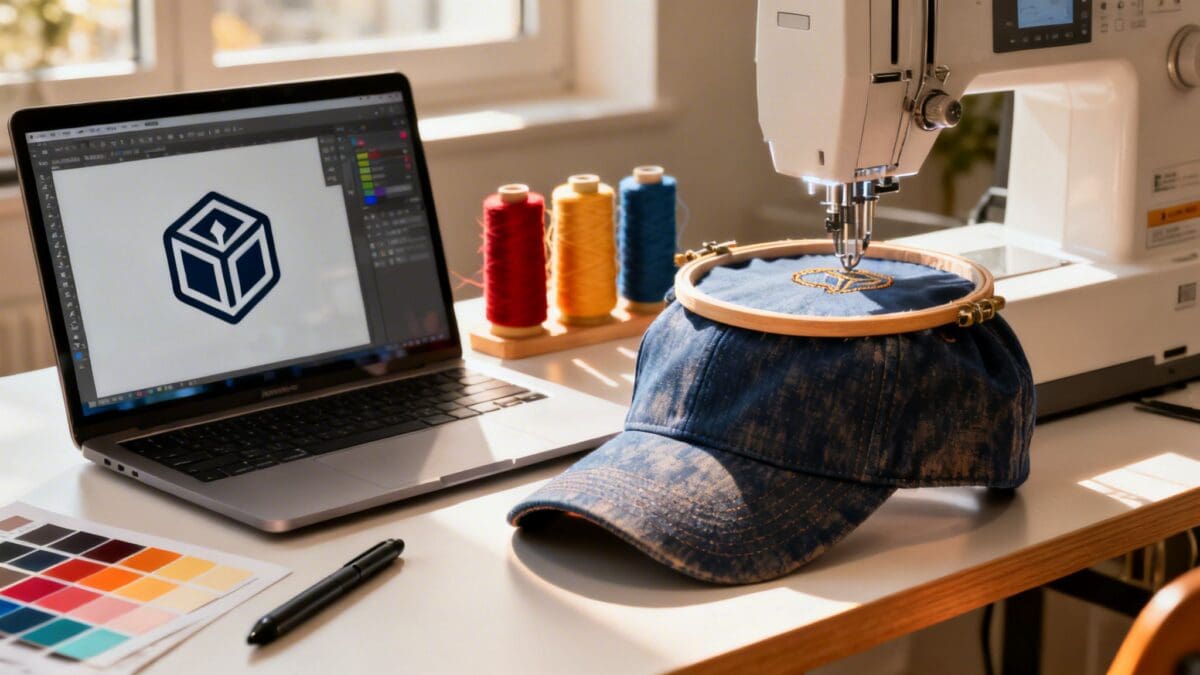
So, you want to get your logo embroidered. Before a single stitch is made, your design has to be converted into a special file an embroidery machine can read. This process is called digitizing, and it's far more than just clicking "save as."
Think of it as translating a painting into a sculpture. A skilled digitizer doesn't just convert a file; they manually plot every single stitch, defining its direction, type, and density to create a beautiful, textured version of your logo. It’s an art form that directly impacts the quality of your finished hats and apparel.
The Foundation of Flawless Embroidery Digitizing
This isn't just a niche skill anymore. The embroidery machine market itself was valued at USD 6.2 billion back in 2021, but it's the digitizing software sector that tells the real story. That specific slice of the industry is expected to grow to nearly $480 million by 2026. That boom shows just how essential high-quality digitizing has become for brands that want to look professional.
Why Your Artwork Quality Matters
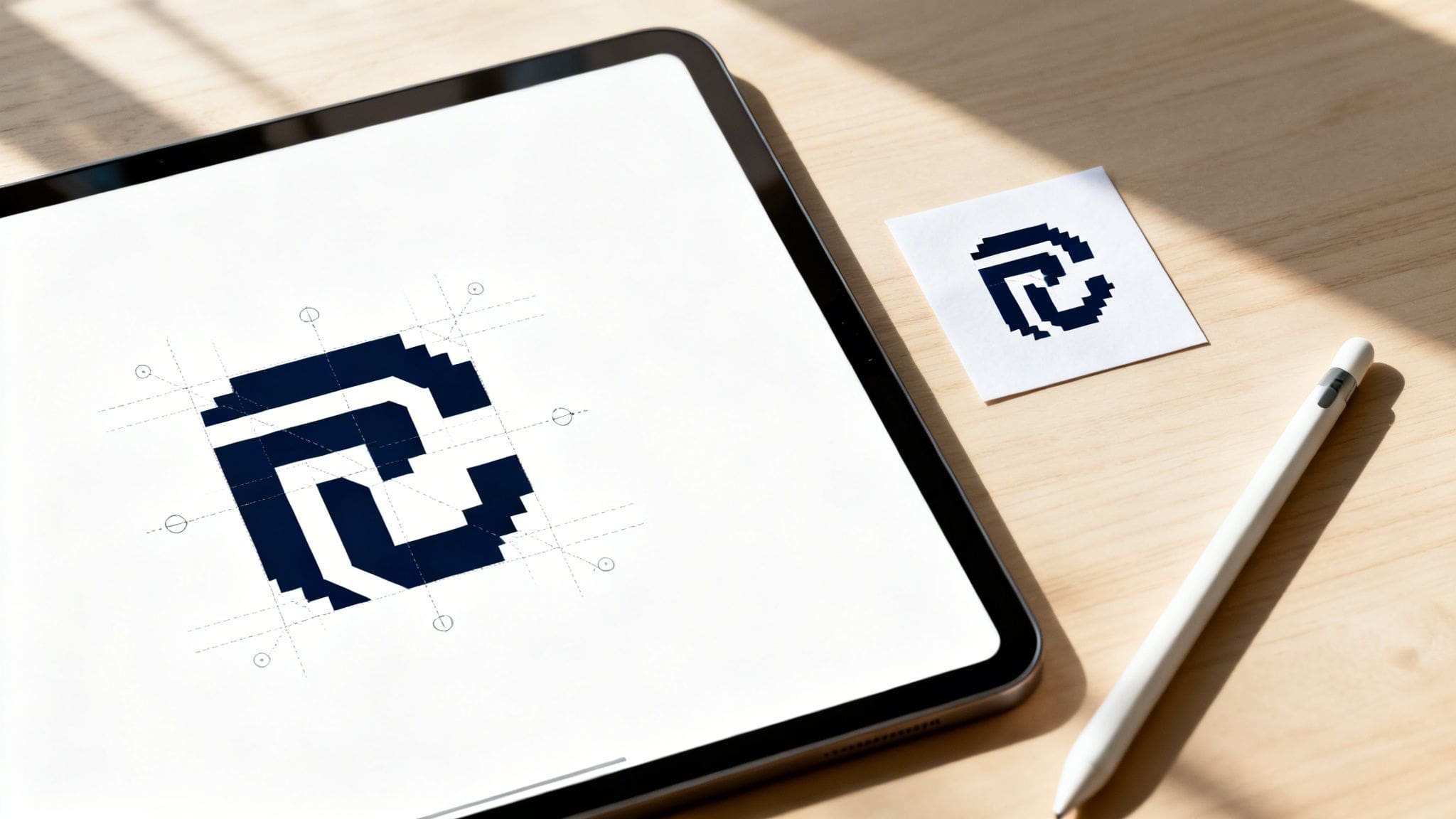
Here’s a hard truth I’ve learned over the years: the quality of your source file is everything. Starting with a low-resolution, pixelated image is like giving a master chef spoiled ingredients. No matter how skilled they are, the final dish will be a letdown.
A clean, crisp source file allows the digitizer to map out the stitch paths with precision. This ensures every line, curve, and tiny detail of your logo is captured perfectly in thread.
Key Takeaway: A digitizer can't invent detail that isn't there. If you provide a blurry screenshot or a tiny JPEG, you'll get an embroidered logo with fuzzy edges and sloppy text. Garbage in, garbage out.
When you're prepping your logo, you'll run into two main types of image files: raster and vector. Knowing which one to use is the first step toward a great result.
Vector vs. Raster: The Clear Winner for Embroidery
If you want professional results, there's no debate: vector files are king. But let's break down why. Raster images, like a .JPG or .PNG, are built from a grid of tiny colored squares called pixels. They're fine for on-screen viewing, but when you zoom in or try to enlarge them, they get blurry and the edges become jagged.
Vector images, on the other hand, are made from mathematical paths and points. Think of it as a set of instructions rather than a static picture. This means you can scale a vector logo from the size of a dime to the side of a bus, and it will remain perfectly sharp. For a digitizer, those clean lines are a dream to work with.
For a deeper dive into creating your own designs, this easy step-by-step guide on how to digitize embroidery designs is a great hands-on resource.
To make it even clearer, here’s a quick comparison of why vector files are the only real choice for professional embroidery projects.
Vector vs Raster Artwork for Embroidery Digitizing
| Attribute | Vector Files (.AI, .EPS, .SVG) | Raster Files (.JPG, .PNG, .GIF) |
|---|---|---|
| Scalability | Infinitely scalable without quality loss. | Loses quality and becomes pixelated when enlarged. |
| Editability | Easy to edit shapes, colors, and paths. | Difficult to edit; changes can degrade the image. |
| Edge Quality | Smooth, clean lines perfect for tracing stitches. | Jagged, blurry edges lead to messy embroidery. |
| File Size | Generally smaller and more efficient. | Can be very large, especially at high resolutions. |
| Best For | Professional logos, detailed graphics, any embroidery. | Web images, photos, and digital viewing only. |
Ultimately, providing a clean vector file is the single best thing you can do to ensure your embroidered logo looks sharp and professional. This is especially true for items with challenging surfaces, like structured caps.
If you’re interested in finding the right products for your project, you can learn more by checking out our guide to https://dirtcheapheadwear.com/buying-bulk-blank-trucker-hats-that-stitch-well/.
Choosing Your Digitizing Software and Tools
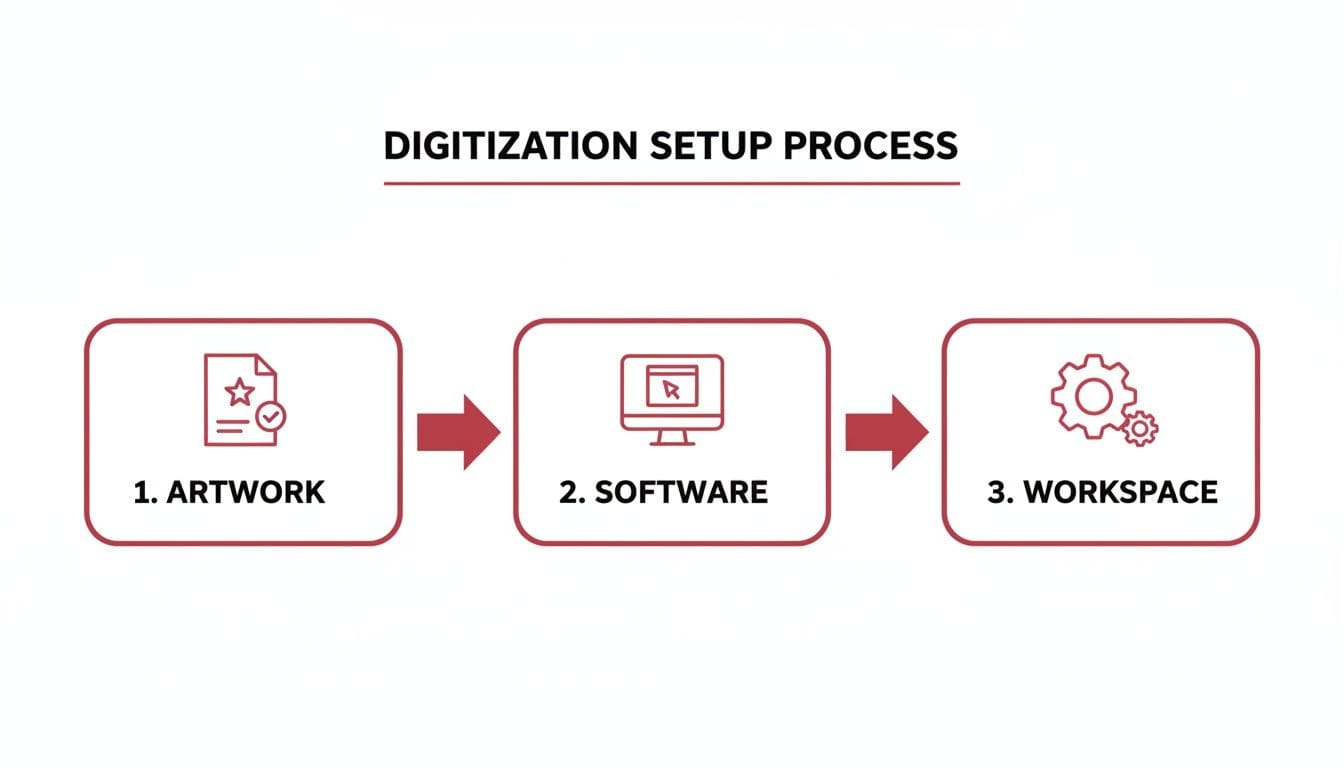
Once your vector artwork is clean and ready, the next step is picking the right software. This decision is a big one. Think of it as choosing your primary set of tools for a new craft—it can feel overwhelming with all the options out there, but getting it right from the start saves a ton of headaches down the road.
You'll find programs at every price point and skill level. On the more beginner-friendly side, you have software like Hatch Embroidery, which is a fantastic starting point. At the professional end of the spectrum is Wilcom Embroidery Studio; it’s the undisputed industry standard for a reason, packed with every feature a seasoned digitizer could ever need.
Manual vs. Auto-Digitizing
Here’s one of the first major hurdles you'll encounter: the seductive promise of "auto-digitizing." Many programs offer a one-click button that claims to convert your logo instantly. Trust me, it’s a trap. These automated tools rarely produce professional results, often creating bizarre stitch paths, weird textures, and failing completely when it comes to fabric-specific settings. The result is almost always puckered, messy, and looks cheap.
This is why pros stick to manual digitizing. It’s a hands-on process where you, the digitizer, make every decision. You trace the design, choose the stitch types, set the direction, and fine-tune every technical detail. This level of control is the only way to get a design that stitches out cleanly and looks incredible.
Why Manual Control Is King: Picture trying to embroider on the mesh back of a trucker hat. An auto-digitized file will just punch stitches right through the holes, creating a sunken, gappy mess. A human digitizer, however, knows to first lay down a special underlay to create a stable foundation, ensuring the final design sits proudly on top of the mesh.
Essential Software Features
Don't get bogged down comparing a giant checklist of features you might never use. When you’re starting out, focus on mastering the fundamentals.
At a bare minimum, make sure the software you choose has robust tools for these tasks:
- Importing Vector Files: You need to be able to bring in your .AI or .EPS files to use as a clean tracing guide.
- Creating Core Stitch Types: Look for intuitive tools for creating Fill, Satin, and Running stitches. These are your bread and butter.
- Adjusting Stitch Properties: Non-negotiable. You need absolute control over density, pull compensation, and underlay.
- Realistic Stitch Simulation: A good preview feature lets you see how the design will likely stitch out, helping you catch mistakes before wasting thread and materials.
Setting Up Your Digital Workspace
After you've installed your software, take a few minutes to get your workspace organized. Just like a mechanic arranges their wrenches, setting up your digital tools for easy access makes the whole digitizing process feel much more fluid.
Start by importing your vector logo. The software will typically place it onto a digital hoop. Now, get acquainted with your main toolbars. Pinpoint your stitch creation tools (they often look like little icons for fills and outlines) and find the properties panel. This panel is your command center, where you'll be spending most of your time tweaking settings.
Think of your screen as your canvas and the software tools as your brushes and needles. By investing in a solid program and committing to manual digitizing, you're gaining the skill to turn any logo into a beautiful piece of embroidery that's ready for any hat we can throw at it.
The Three Core Stitches: Fill, Satin, and Running
Alright, your software is fired up and your artwork is prepped. Now for the fun part—turning that flat digital image into a real-life embroidery design. This is where you go from just having a logo to having a plan for the needle and thread.
Think of yourself as a translator. You’re taking the language of lines and colors and translating it into the language of stitches. To do this, you really only need to master three fundamental stitch types: the Fill Stitch, the Satin Stitch, and the Running Stitch. Get these right, and you can tackle just about any design for any type of headwear.
Covering Large Areas with Fill Stitches
For any big, solid-colored shapes in your logo, the Fill Stitch is your workhorse. It's often called a Tatami stitch, and its job is to lay down a solid field of thread for broad coverage. It’s the best way to efficiently fill in backgrounds or large elements.
But a fill stitch is more than just a block of color. The real artistry comes from controlling its angle and density. By changing the angle of the stitches, you can play with how light reflects off the thread, giving a flat design a sense of texture and depth.
For instance, if you're working with a circular design on a cap, setting the fill angle to 45 degrees is a smart move. Running stitches perfectly horizontally or vertically can sometimes cause the fabric to pull or pucker, but a diagonal angle helps the design lay flat and look clean.
Creating Clean Borders and Text with Satin Stitches
If the fill stitch covers the broad areas, the Satin Stitch is what you use for the crisp details. It’s a series of tight, parallel stitches that create a raised, glossy line perfect for outlining shapes and, most importantly, for lettering. That smooth sheen is what makes text pop and gives a logo its professional, high-quality finish.
This is the point in the process where you start applying the stitches you've planned out. After getting your art and software ready, you begin mapping out which parts of the logo get which stitch type.
Let's go back to that circular logo. You've filled the inside with a fill stitch. Now, you’d trace the entire border with a satin stitch. This creates a clean, defined outline that neatly separates your logo from the hat fabric, making it look sharp and intentional.
Adding Fine Details and Structure with Running Stitches
Finally, we have the Running Stitch. This is the most basic stitch of all—a simple line of stitches, just like you'd see in hand sewing. It has two primary jobs: handling very fine details and creating a structural underlay.
An underlay is a grid-like foundation of running stitches that goes down before the main stitches. It stabilizes the fabric, prevents it from puckering, and gives your satin and fill stitches a smooth platform to sit on, keeping them from sinking into the weave of the cap.
From the Trenches: Trying to use a satin stitch for tiny text or ultra-thin lines is a classic rookie mistake. There’s a minimum width needed for a satin stitch to look good; go too thin, and you'll end up with a jumbled mess of thread. For those delicate details, a running stitch is your only real option. It keeps things clean and legible.
Putting It All Together: A Real-World Example
Let's walk through digitizing a simple logo for a classic 6-panel cap. Imagine it's a circular logo containing a brand name. Here’s how you'd combine the stitches:
- The Underlay: First, you’d lay down a light underlay of running stitches across the entire design area to give it a solid base on the cap's panel.
- The Main Circle: Next, you'd apply a fill stitch for the background color of the circle, setting the stitch angle diagonally to prevent distortion.
- The Outer Border: You'd then trace the circle's edge with a satin stitch to create a bold, clean border that makes the logo stand out.
- The Brand Name: For the text inside, you'd carefully digitize each letter using satin stitches, ensuring the width is just right for crisp readability.
The boom in custom apparel is undeniable. Market data shows the global embroidery business rocketing from $2,572 million in 2021 to an estimated $3,712 million by 2025, riding a 9.6% CAGR. That growth is fueled by demand for personalized gear—exactly what Dirt Cheap Headwear customers are after, from startups branding their team to creators dropping custom merch. You can dive deeper into what's driving this growth in this 2026 embroidery digitizing trend report.
By learning to blend these three core stitches, you’re not just making a design; you're engineering a piece of high-quality, textured art that's ready for production.
Mastering Density, Underlay, and Pull Compensation
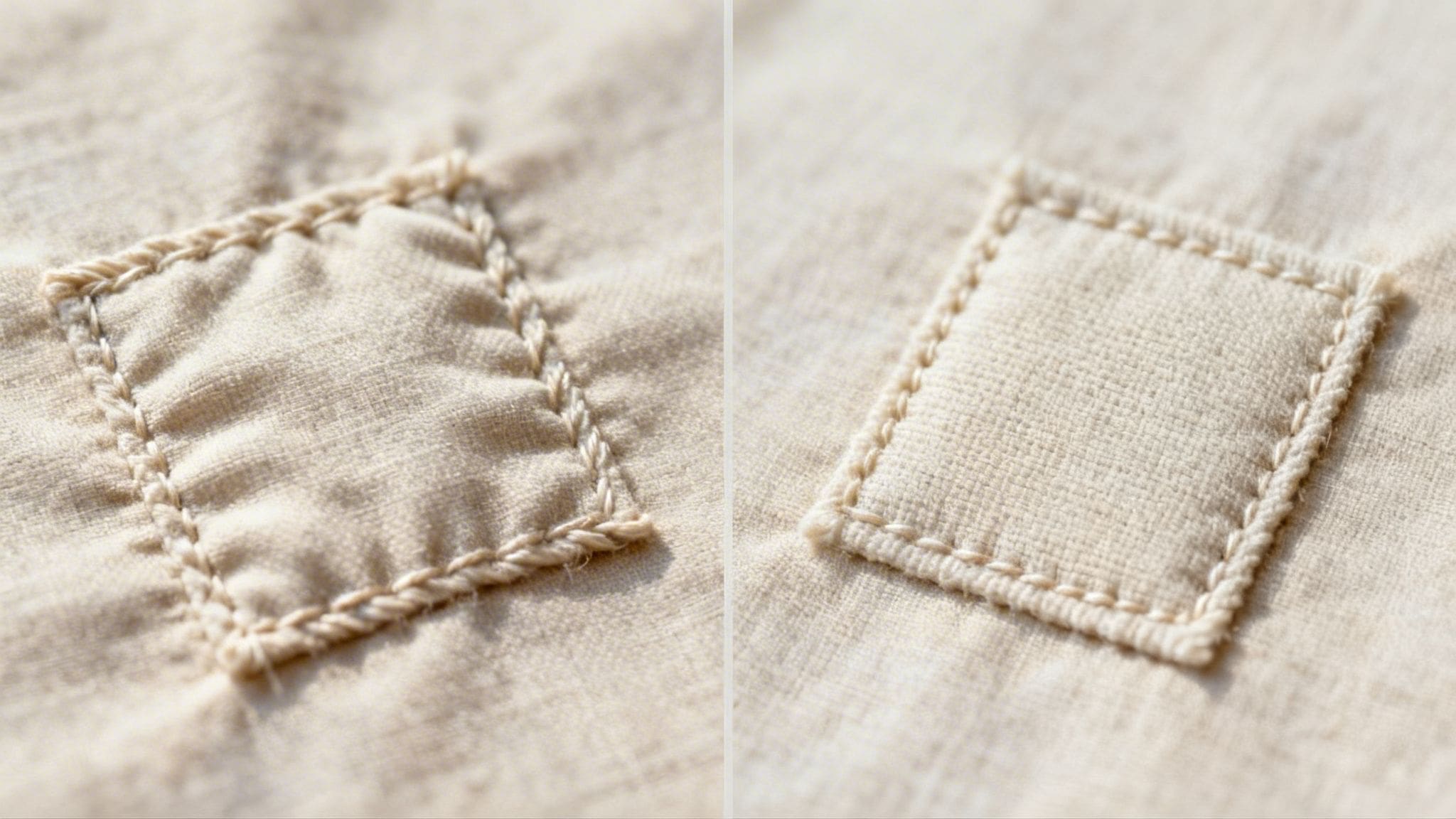
If stitch types are the building blocks of your design, then the technical settings are the mortar and physics holding everything together. Getting a handle on density, underlay, and pull compensation is what truly separates the rookies from the pros.
These three settings are the secret to avoiding those all-too-common embroidery disasters: puckered fabric, stiff "bulletproof" designs, and distorted shapes that look nothing like your original logo. This is where you, the digitizer, really earn your stripes.
First, Lay a Solid Foundation with Underlay
Before your machine ever lays down the main stitches, it needs a stable base. That’s the job of the underlay. Think of it as a primer for paint—a foundational layer of stitches that prepares the fabric for the main event.
Underlay serves two key purposes. It stabilizes the garment, preventing it from bunching up or stretching out of shape. It also gives your top stitches a raised platform to sit on, so they don’t sink into the fabric’s weave. This is absolutely critical when you're working with soft materials like knits or unstructured hats.
Take an unstructured dad hat, for example. Without a proper underlay, the dense stitches of your logo would just sink into the soft cotton, leaving you with a muddy, undefined mess.
Your software will offer a few types of underlay. Choosing the right one comes with experience:
- Center-Run Underlay: This is a single line of stitches running down the middle of a column. It’s perfect for narrow satin stitches and small text.
- Edge-Run Underlay: This stitch traces the outline of your shape, creating a crisp border before the main fill or satin stitches go down.
- Tatami or Fill Underlay: A light grid of stitches laid down under large fill areas. It provides maximum stability and prevents puckering on big designs.
Finding the Sweet Spot with Stitch Density
Next up is stitch density, which is just a fancy way of saying how close together your stitches are. This is a delicate balancing act I've seen many beginners get wrong.
Go too low with your density, and you’ll see the fabric peeking through, which just looks cheap. But if you go too high, you create a "bulletproof" patch. The design gets incredibly stiff, feels terrible to wear, and the sheer force of all that thread can cause the fabric to pucker badly.
The goal is full, lush coverage without turning a comfortable hat into a helmet.
A Digitizer's Rule of Thumb: A standard starting point for satin stitch density is around 0.40mm (or 4.0 points in some software). But treat this as a baseline. Thicker threads need less density (more space between stitches), while very fine details might need more.
Counteracting Fabric Distortion with Pull Compensation
Here’s a concept that trips up a lot of people: fabric isn't a passive canvas. Every time the needle punches through, it pulls the fabric inward. This natural "pull effect" or pull distortion causes your embroidered shapes to shrink and stitch out narrower than you designed them.
Pull compensation is your secret weapon to fight this. You intentionally digitize your shapes to be slightly wider than the original artwork. As the machine stitches, the fabric's natural pull shrinks the shape back down to the correct size.
Imagine digitizing a perfect circle. Without any pull compensation, it will almost always stitch out as a slight oval. By adding a tiny bit of compensation—often just 0.1mm to 0.3mm on each side—you counteract the pull and ensure your final product is a true circle.
Getting these settings right is how today’s top shops deliver incredible detail at scale. For companies like Dirt Cheap Headwear, who handle intricate logos on popular hats from brands like Nike or New Era, digital precision is everything. In fact, the US commercial embroidery market is projected to hit $987.4 million by 2026, largely because digital tools have made the process so much more efficient.
Modern digitizing software and machinery have a huge impact. Using CAD systems and digital tension controls can slash thread breaks by 20%, and laser integration for things like appliqué can achieve 99% precision on edges—a must-have for getting clean logos on structured 6-panel hats. You can find more embroidery industry statistics to see just how much technology is shaping the business.
Digitizing for Hat Embroidery and 3D Puff
Embroidery on a hat isn't like embroidering on a flat polo shirt. Not even close. The biggest hurdle you'll face is the curved surface of a cap's front panel. If you just take a design digitized for a flat garment and run it on a hat, you're setting yourself up for a classic case of distortion—the logo will look bowed, warped, and just plain wrong.
The secret weapon against the curve is a simple but powerful principle: digitize from the center out.
Think of it this way: your stitch path needs to start right in the vertical middle of your design. From there, you work outward toward the left and right edges. This technique pushes any fabric movement or distortion away from the center of the logo and out to the sides, where it's practically invisible.
Adapting to Different Hat Styles
Of course, not all hats are created equal. Your digitizing approach has to change depending on whether you're working with a rigid structured cap or a soft, floppy beanie.
- Structured Caps: These are your best friend. The firm surface is stable, so a standard "center-out" digitizing path with a solid underlay usually gets the job done beautifully.
- Unstructured Hats: The soft fabric on these is much more likely to pucker. You need to give it more support. A stronger underlay, like a light fill or even a crosshatch pattern, is non-negotiable for keeping the fabric stable before the top stitches go on.
- Beanies: Knit fabrics are the final boss. They're stretchy and have a deep texture that can swallow your stitches. Here, you'll need a much heavier underlay and more pull compensation to stop the design from sinking into the material and getting lost.
Placement is just as important. Most of the time, you'll center the logo on the front two panels. But the perfect height and size will always depend on the hat's specific profile and the logo itself.
Pro Tip: Never, ever digitize a hat design that stitches from the bottom up or top down. This fights the natural curve of the panel and is a one-way ticket to a puckered, distorted mess. Always work from the center outward. It's the golden rule of hat embroidery.
The Magic of 3D Puff Embroidery
Now for the fun stuff: 3D Puff embroidery. This is the technique that makes designs literally pop off the hat using a special foam underlay. It creates an incredible, high-value look, but you can't just throw foam under a regular design.
A standard satin stitch will act like a perforation, cutting the foam into little pieces that show through your thread. To get that clean, raised effect, you have to digitize specifically for puff.
It really comes down to three key steps:
- The Tack-Down Stitch: First, you digitize a simple running stitch outline of your shape. The machine sews this directly onto the hat, giving you a perfect template showing exactly where to place the puff foam.
- Wide Satin Stitches: To cover the foam without shredding it, you need to use very wide satin stitches with a lower density. The goal is for the stitches to wrap over the foam and anchor on either side, sculpting it into a raised shape.
- Capped Ends: This is the secret sauce. At the end of each satin column, you program "caps"—a small block of tight, perpendicular stitches. These caps punch through the foam, securing it and creating a clean edge. This makes it easy to tear away the excess foam for that sharp, professional finish.
Getting a handle on these techniques is what separates good embroidery from great headwear. If you want to see what's possible, check out our gallery of custom puff embroidery hats that sell. Mastering these hat-specific methods will open up a whole new level of creativity for your designs.
Finalizing Your File and Placing Your Order
You’ve put in the time tracing paths and fine-tuning every last setting. Now for the moment of truth: getting that file off your computer and onto an actual embroidery machine. This is where your digital blueprint becomes a physical, high-quality hat.
First, it's important to know the difference between your working file and a stitch file. Your software's native format (like .EMB for Wilcom) saves all your objects and properties, letting you make edits later. But the embroidery machine can't read that. It needs a stitch file.
Think of a stitch file as a simple set of coordinates and commands. It tells the machine exactly where to put the needle, when to cut the thread, and when to switch colors. It contains no editable artwork, only the raw instructions to create the embroidery.
Choosing the Right Embroidery File Format
Embroidery machines from different manufacturers speak different languages. While there are dozens of formats, you’ll really only need to worry about two most of the time: .DST and .PES.
.DST (Tajima): This is the undisputed workhorse of the commercial embroidery world. It’s an older format, but its simplicity is its strength. Nearly any professional machine can read a .DST file, making it the universal standard.
.PES (Brother/Babylock): A bit more modern, this format can carry extra data like specific thread color information. It’s common for home and prosumer machines, but it’s also widely supported by commercial shops.
When you’re exporting a file for a professional service like Dirt Cheap Headwear, .DST is almost always the safest choice. It’s clean, reliable, and universally accepted.
A Quick Pre-Export Check: Before you save that final file, always do one last quality pass. I always look for an excessive number of trim commands, which can really slow down a production run. Also, quickly review your stitch sequence to make sure everything will sew in a logical order—underlay first, then large fills, with fine details and text on top.
Placing Your Order with Dirt Cheap Headwear
With your production-ready stitch file in hand, the ordering process is refreshingly simple. This is where all your careful digitizing work pays off, because a well-made file helps ensure there are no surprises.
When you're ready to go, you can just upload your new embroidery file directly on the Dirt Cheap Headwear site. For anyone who has their own digitized designs, this is a massive time-saver. You just upload your file, select your hats, and approve a digital proof before the needles ever start moving.
It's a straightforward process that makes custom apparel accessible, whether you're a small brand testing a new logo or a team that needs uniforms fast. With low minimums of just six pieces and quick turnarounds, you can get professional results without a huge upfront investment.
Frequently Asked Questions About Logo Digitizing
No matter how long you've been digitizing, some common hurdles pop up time and time again. Let's walk through a few of the questions I hear most often, so you can solve problems quickly and keep your projects moving.
What Is the Best File Format for Embroidery?
While you'll do all your editing in your software's native file (like an .EMB), that's not what the embroidery machine actually uses. When it's time for production, the undisputed king is .DST (Tajima).
Think of it as the PDF of the embroidery world—it's a universal language that nearly every commercial machine understands. Sending a .DST file to a professional shop like ours is the safest bet for a flawless run. While .PES (Brother) is common for home and prosumer machines, .DST is the professional standard.
Why Is My Text Not Stitching Out Cleanly?
This is probably the most common issue I see. The culprit is almost always trying to make text too small for a satin stitch. There's a real physical limit to how tiny a thread can get before it turns into a jumbled, unreadable mess.
Expert Tip: If your lettering is under 4mm high, a satin stitch is going to struggle. For that really fine text, your best move is to switch to a simple running stitch. It won't have the same bold, raised look, but it will be crisp and legible, which is what truly matters.
How Can I Fix Fabric Puckering?
Ah, puckering. That dreaded wrinkling of the fabric around your design is a dead giveaway that your technical settings are fighting the material. It happens when the pull from the stitches is too much for the fabric to handle.
Luckily, you can usually fix it by adjusting one of these three things:
- Strengthen Your Underlay: This is the number one cause. A flimsy foundation just won't cut it. Try adding a more robust underlay, like a light fill grid, to give the fabric the stability it needs.
- Reduce Your Density: Is your design "bulletproof"? If it feels overly stiff, you've packed too many stitches in. Back off the density just a bit to relieve some of that tension.
- Check Your Hooping: Make sure the garment is hooped nice and taut—but not stretched out of shape. A loose hoop is a recipe for disaster, as it lets the fabric shift and bunch up while the machine is running.
Ready to see your professionally digitized logo on high-quality headwear? At Dirt Cheap Headwear, we make it easy to bring your brand to life. With low minimums, fast turnarounds, and a huge selection of hats, we’re your partner for custom embroidery. Upload your design and get started today.
Produced via Outrank
Pingback: The Ultimate Guide to the 7 Panel Hat | Dirt Cheap Headwear